Table of Contents
Teammates: add, manage and remove people in your Landbot account
 Updated
by Desirée M
A teammate is a person who works in your Landbot account with their own email and password. Teammates can build agents, chat with visitors and manage settings at the same time as you, depending on the permissions you give them.
To add a teammate, go to Team, click + and enter their email. Landbot sends them an invitation, and they join by choosing a name and a password.
What is a teammate in Landbot?
A teammate is a user with their own login to your Landbot account. Each teammate signs in with their own email and password, so you never share yours, and everyone can work in the account at the same time.
What each teammate can do depends on their role. The Roles & Permissions for Teammates article explains each role.
How to add a teammate
To add a teammate, open the Team page and invite them by email:
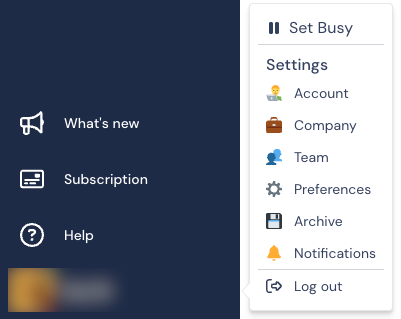
1️⃣ Click your avatar in the bottom-left corner and select Team.
2️⃣ Click the + tile after your current teammates.

3️⃣ Enter the teammate's email and click ADD.
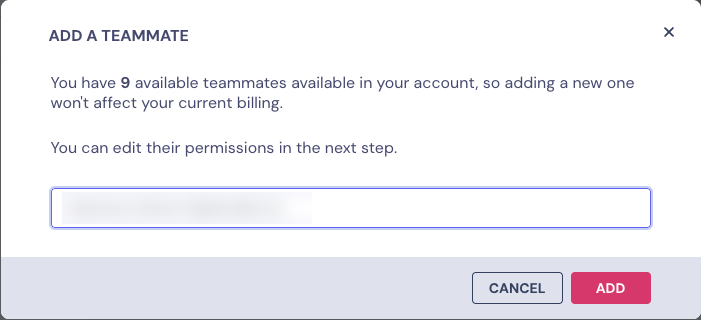
The ADD A TEAMMATE dialog tells you whether the new teammate changes your bill before you confirm. The next section explains how seats are charged.
Landbot then sends the invitation email, and the new teammate appears on the Team page with a default avatar until they accept.
How does a teammate accept the invitation?
A teammate accepts the invitation from the email Landbot sends them. The email comes from Landbot and says who invited them and to which account.
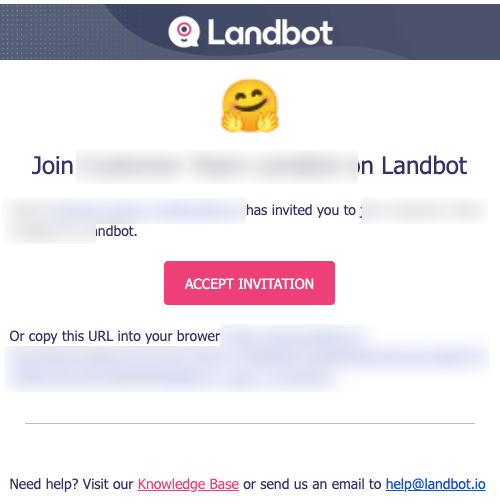
To join, the teammate follows these steps:
1️⃣ Click ACCEPT INVITATION in the email, or copy the link below the button into the browser.
2️⃣ Enter a Name and Create a password (at least 8 characters, with 1 number and 1 symbol).
3️⃣ Click Join.
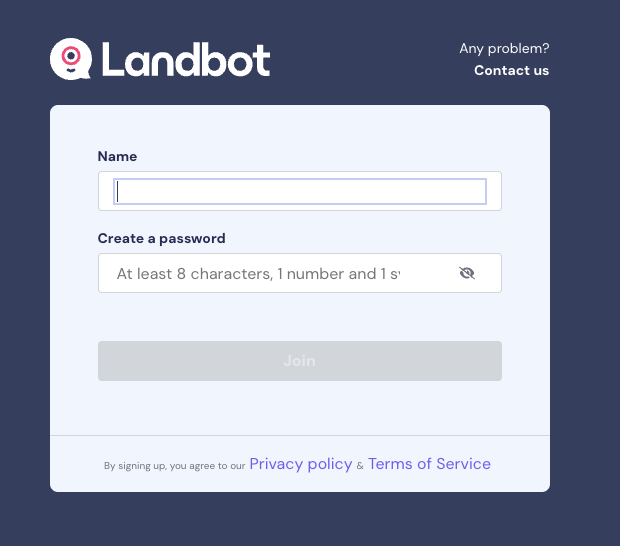
After Join, the teammate is in your account, and Landbot opens its AI Copilot onboarding first. From then on, the teammate signs in at Landbot with the invited email and the password they chose.
How to set a teammate's permissions
New teammates get full access: Admin, Agent Builder and Chat Manager, all set to "Can do everything". To give someone less access, change their role right after you invite them:
1️⃣ On the Team page, click the teammate.
2️⃣ Click Set permissions.
3️⃣ Choose a role for ADMIN, AGENT and HUMAN CHAT, and click SAVE.
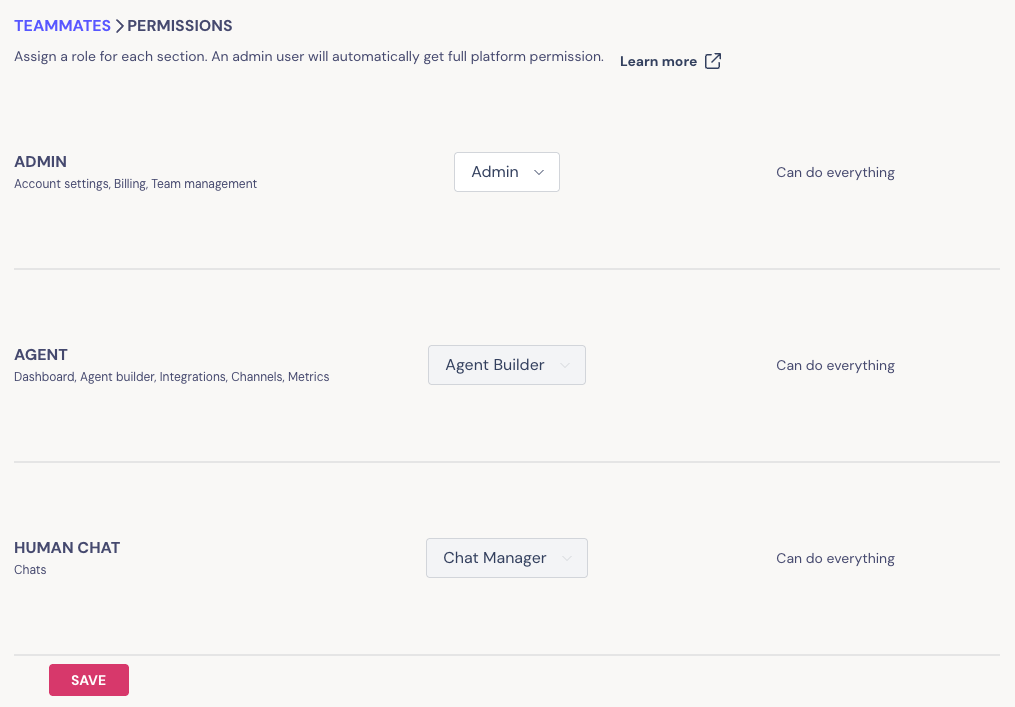
Each section covers part of Landbot: ADMIN is account settings, billing and team management; AGENT is the dashboard, Agent builder, integrations, channels and metrics; HUMAN CHAT is the chats with visitors. The Roles & Permissions for Teammates article explains what each role allows.
How many teammates can I add, and what do they cost?
Each Landbot plan includes a number of teammate seats, listed on the Landbot pricing page. Every teammate uses one seat, including invited teammates who haven't accepted yet.
How adding a teammate affects your bill depends on whether you have a free seat:
● With a free seat, the ADD A TEAMMATE dialog says how many teammates are still available and that adding one won't affect your current billing.
● With no free seat left, the dialog shows how much your bill increases, prorated for the current billing cycle. You're charged as soon as you click ADD.
You can find the charge under Subscription > Invoices.
An account can have up to 10 teammates. To add more, contact help@landbot.io.
What to do when my teammate already has a Landbot account?
When the email you invite already belongs to another Landbot account, the ADD A TEAMMATE dialog shows "This email is already used by another account" and doesn't send the invitation.
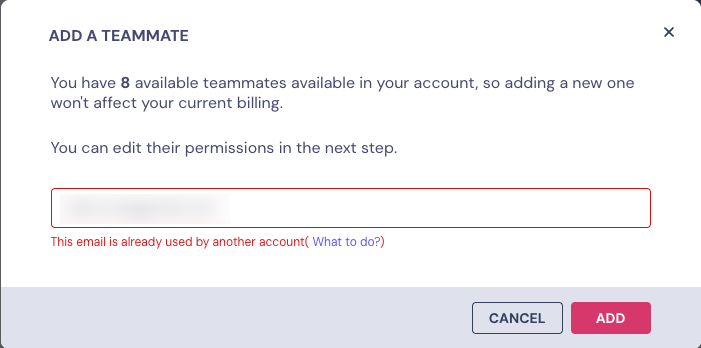
To invite that person anyway, choose one of these options:
● Change the email of their other account, then invite them with the email they want to use in yours.
● Delete their other account, if they no longer use it.
● Invite an email alias: add a + and a few characters before the @. For example, invite priya.muller+team@yourcompany.com instead of priya.muller@yourcompany.com.
The invitation for an alias arrives in the same inbox as the main email, and the teammate signs in with the alias. Not every email provider supports aliases.
How to remove a teammate
To remove a teammate, open their profile and delete them:
1️⃣ On the Team page, click the teammate.
2️⃣ Click Delete teammate in the bottom-right corner.
3️⃣ Click DELETE to confirm.
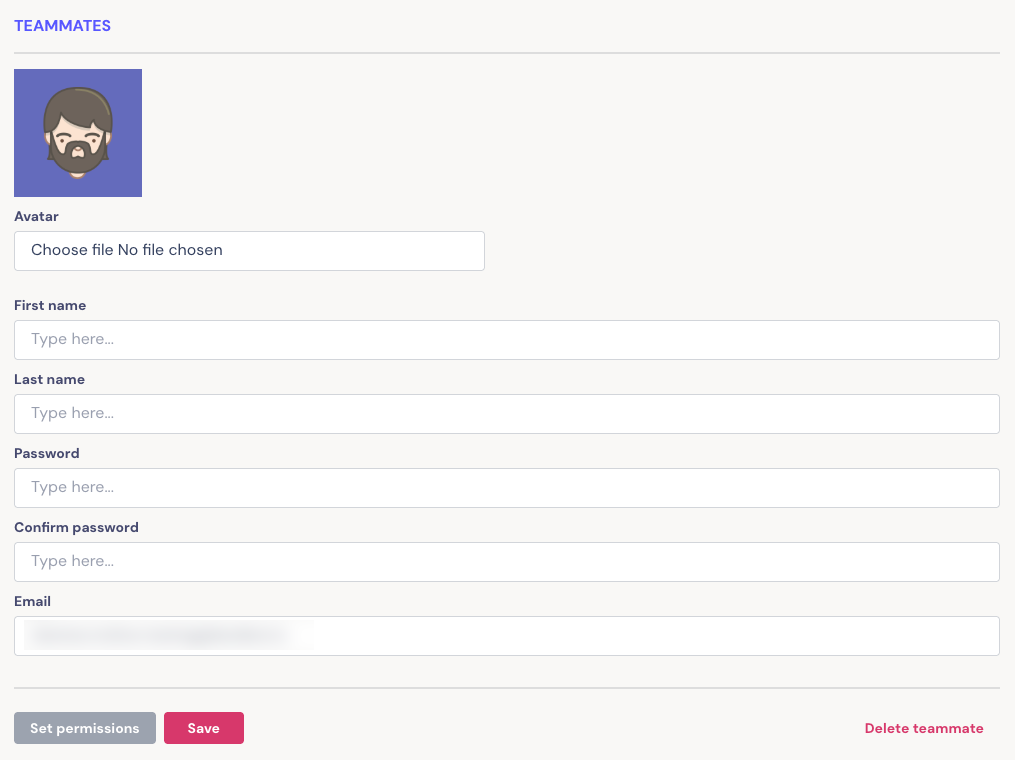
Removing a teammate frees their seat for the next person you invite. You can't delete your own profile from the Team page.
The same profile is where you change a teammate's avatar, name, password or email: edit the fields and click Save.